
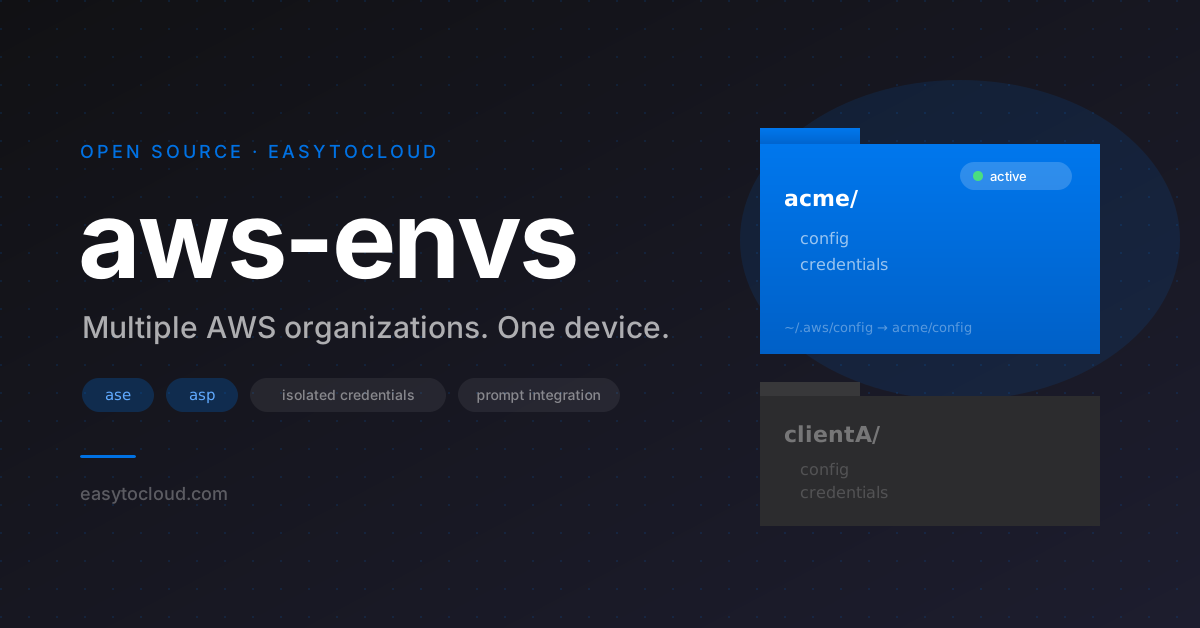
If you work with more than one AWS organization—your own company, a client, a personal sandbox—a single ~/.aws directory is a liability. All your profiles live in one flat namespace. There's no clear separation between organizations. A wrong AWS_PROFILE value, or forgetting to set one at all, can silently target the wrong account.
aws-envs fixes this with one new concept: the environment. Each AWS organization gets its own isolated directory of credentials. Only one environment is visible to the AWS CLI at any moment, and the shell prompt tells you which one that is.
The Concept: One Directory per Organization
An environment is a directory under ~/.aws/aws-envs/ containing exactly one organization's config and credentials files:
~/.aws/
  config           → aws-envs/acme/config       (symlink)
  credentials      → aws-envs/acme/credentials   (symlink)
  aws-envs/
    acme/
      config
      credentials
    clientA/
      config
      credentials
    personal/
      config
      credentials
The AWS CLI always reads ~/.aws/config and ~/.aws/credentials. With aws-envs, those are symlinks that point at the active environment's files. Switch the environment, and the symlinks update—the AWS CLI now sees a completely different set of profiles, with no trace of the others.
Within an environment, profiles work exactly as they always have. aws-envs doesn't change the profile concept; it wraps it with an isolation layer above.
Two Scopes: Global and Session
Switching environments can happen at two different scopes, depending on what you need.
Global scope — affects all terminal windows
ase acme
This updates the ~/.aws/config and ~/.aws/credentials symlinks. Every terminal window and background process that reads those files now sees the acme environment. This is the right choice when you're switching your working context for the day.
Session scope — affects only the current terminal
ase --session clientA
This sets AWS_CONFIG_FILE and AWS_SHARED_CREDENTIALS_FILE to point directly at the clientA environment's files—but only in the current shell session, as environment variables. Other terminal windows are unaffected; they continue using whatever the global symlinks point at.
Session scope is valuable when you need to work in two organizations at the same time: run one terminal globally pointed at acme, open a second terminal and set session scope to clientA, and both are fully isolated from each other. Close the second terminal and the session-scoped environment disappears cleanly.
The ase and asp Commands
If you use oh-my-zsh, you may already have asp — it's part of the standard aws plugin that ships with oh-my-zsh and switches the active AWS profile. oh-my-easytocloud extends that same plugin by adding ase one level above it: same conventions, same workflow, but now with environment switching on top.
# Switch environment (global scope)
ase acme

# Switch environment interactively
ase
# 1 acme    2 clientA    3 personal
# Enter environment number [1-3]> _

# Switch profile within the active environment
asp prod

# Switch profile interactively
asp
# 1 dev    2 prod    3 readonly
# Enter profile number [1-3]> _

# Create a new empty environment
ase --add clientB
The plugin also patches your shell prompt to show the active environment and profile:
[acme|prod] ~/projects/infra $
That prompt is the safety net. Before you run terraform apply or aws s3 rm, you see exactly which organization and role you're targeting.
Setup
Step 1: Migrate your existing ~/.aws directory
If you already have AWS profiles configured, the one-time migration tool converts them into an aws-envs structure:
uvx aws-envs-setup
No installation needed—uvx runs it directly. The tool asks you to name your first environment, moves your existing config and credentials files into it, creates the symlinks, and writes ~/.awsdefaultenv so your shell restores the right environment on login.
Step 2: Install oh-my-easytocloud
Follow the instructions in the oh-my-easytocloud repository to get ase, asp, and prompt integration.
Step 3: Add more environments as needed
ase --add clientA
# now configure profiles in this environment:
aws configure --profile admin
Everything you configure with aws configure goes into the currently active environment. There's no risk of accidentally writing a client's credentials into your personal environment.
Daily Use
A typical day working across two organizations:
# Morning: switch globally to acme for the day
ase acme
asp admin
aws s3 ls   # acme buckets

# Quick look at clientA without disrupting the global context
# open a new terminal, then:
ase --session clientA
asp readonly
aws ec2 describe-instances   # clientA instances, this terminal only

# Back in the acme terminal, nothing changed
aws s3 ls   # still acme
Default environment on login
~/.awsdefaultenv sets the environment that activates when a new shell starts. Set it once:
echo "acme" > ~/.awsdefaultenv
~/.awsdefaultprofile does the same for the profile within that environment.
SSO
AWS CLI v2 SSO works per-environment without any special configuration. Each environment holds its own SSO session independently. For a better SSO login experience across environments, see our follow-up article on ssostart and sso-config-generator.
Getting Started
- Repository: github.com/easytocloud/aws-envs
- Shell functions and prompt: github.com/easytocloud/oh-my-easytocloud
- One-time setup:
uvx aws-envs-setup